
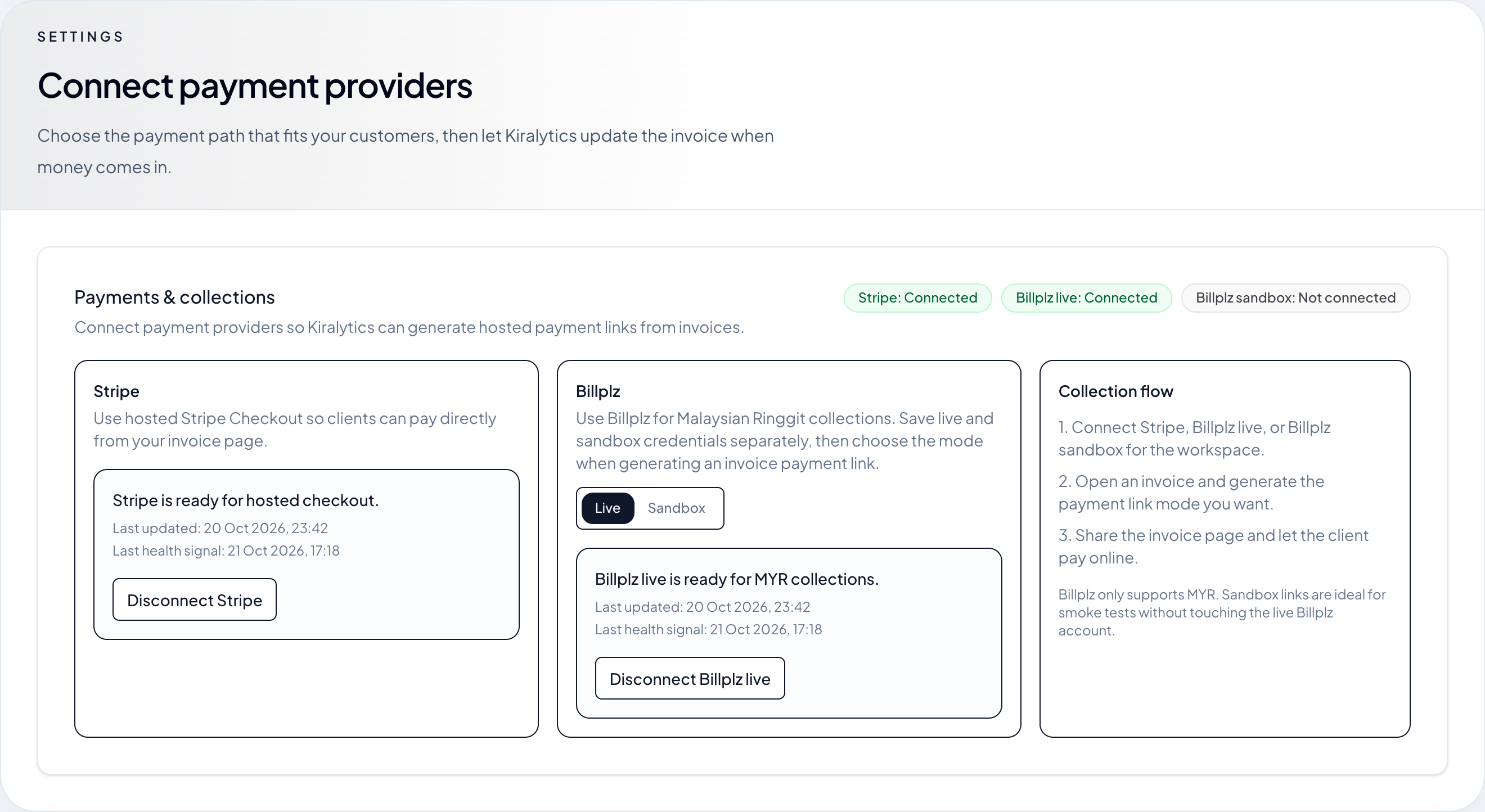
Kiralytics never touches your money directly — it just generates hosted payment links from your invoice pages. To do that, you connect at least one payment provider from Settings.
You can connect both Stripe and Billplz (live + sandbox). Pick whichever matches how your clients actually pay.
Use this for card payments
Best when clients pay by international credit or debit card.
Use this for MYR collections
Best for Malaysian online banking, FPX, cards, and DuitNow style collections.
You can connect both
Kiralytics lets you keep multiple options ready, then choose the right one per invoice.
Simple payment flow
Connect provider details in Settings
Save the right keys once, then Kiralytics remembers them for future invoices.
Generate a payment link on the invoice
The invoice can then send the client to a hosted payment page.
Client pays through the provider
Stripe or Billplz handles the checkout flow and payment confirmation.
Kiralytics updates the invoice
Webhook updates mark the invoice as paid and unlock the receipt actions.
Stripe — global card payments
Stripe is the right choice if your clients pay by international credit or debit card. Stripe handles the checkout page, the money movement, and the webhook that tells Kiralytics the invoice is paid.
Get your secret key
- Sign in to the Stripe Dashboard.
- Make sure you're viewing the Live mode (toggle at the top-left).
For testing, switch to Test mode and use a
sk_test_...key instead. - Open Developers → API keys.
- Under Standard keys, click Reveal test key or Reveal live
key. Copy the
sk_live_...orsk_test_...value. - Paste it into the Stripe secret key field on Settings → Payments & collections and click Connect Stripe.
That's all Kiralytics needs from Stripe. We don't ask for a publishable key (Kiralytics redirects clients to a hosted checkout, so the card form lives entirely on Stripe's servers).
Your secret key is stored encrypted in the Kiralytics database. It is never sent to your browser after you save it, and it is never logged.
What happens after you connect
- The status pill changes to Connected (green).
- A new invoice's Generate payment link button now offers "Stripe Checkout" as a mode.
- Kiralytics creates a Stripe Checkout session when the client clicks
the link, and a Stripe webhook (
/api/webhooks/stripe) marks the invoice paid when Stripe confirms the charge.
If Stripe rejects the key (wrong account, revoked secret), the status pill turns amber: Connected, needs attention. Reconnect with a fresh key.
Billplz — Malaysian Ringgit collections
Billplz is the right choice if your clients pay by Malaysian online banking (FPX), cards, or duitnow. Billplz is MYR-only.
What you need from Billplz
Three values:
- Billplz secret key — from the Billplz API settings page.
- Collection ID — a Billplz collection you've created for this workspace.
- X Signature key — used to verify that webhook calls really came from Billplz.
Get the secret key
- Sign in to Billplz.
- Switch between Live and Sandbox with the toggle in the top-right. Use Sandbox for testing — it never touches real money.
- Open Settings → API.
- Copy the Secret Key for the mode you want.
Get the Collection ID
- In Billplz, open Collections in the left sidebar.
- Click Create a Collection if you don't have one yet.
- Pick a title your clients will recognise ("Acme Studio Sdn Bhd" rather than "Internal-1"). The title appears on the Billplz checkout page.
- Open the collection you want to use.
- The URL looks like
https://www.billplz.com/collections/<id>. Copy the<id>portion — that's the Collection ID Kiralytics asks for.
Get the X Signature key
- In Billplz, open Settings → Webhooks.
- Set the Webhook URL to
https://kiralytics.com/api/webhooks/billplz. - Click Generate X Signature Key if you haven't already.
- Copy the key. Paste it into the X Signature key field in Kiralytics.
Save them in Kiralytics
- Open Settings → Payments & collections.
- Switch to the Live or Sandbox tab (you can save both — they're independent credentials).
- Fill in the three fields. Kiralytics tells you straight away if any of them are wrong.
- Click Connect.
What happens after you connect
- The status pill changes to Connected.
- A new invoice's Generate payment link button now offers "Billplz live" or "Billplz sandbox" depending on which mode you have credentials for.
- Kiralytics creates a Billplz bill when the client clicks the link,
and a Billplz webhook (
/api/webhooks/billplz) marks the invoice paid when Billplz confirms the payment.
Disconnecting a provider
Settings → Payments & collections → Disconnect removes the credentials from Kiralytics. Existing invoices keep their payment links until the link expires, but new invoices can't generate links for that provider until you reconnect.
Troubleshooting
- "Connected, needs attention" — Kiralytics tried to use the key recently and the provider rejected it. Reconnect with a fresh key.
- Wrong environment — Billplz will reject a live key on the sandbox tab, and vice versa. Switch tabs and try the other key.
- Webhook not firing — make sure the webhook URL in your provider's
dashboard matches exactly:
https://kiralytics.com/api/webhooks/<provider>. Kiralytics cannot auto-configure webhooks on your behalf.